

How to Set Up & Use Windscribe on a Windows PC


Setting up Windscribe on Windows is pretty much like this: download the installer, approve the thing, let the app install the driver, continue with your life.
With Windscribe installed, your Windows PC can route traffic through an encrypted VPN tunnel, mask your IP address, and stop background apps from quietly sending data outside the VPN connection. Helpful, because Windows has never met a background process it didn’t want to invite over for dinner.
This guide covers how to install Windscribe on Windows 10 or 11, connect for the first time, and configure the settings that matter most on a desktop or laptop.
Before You Install
You don’t need much to get started:
- A Windows 10 or Windows 11 PC: The current Windscribe desktop app supports Windows 10 and Windows 11. Older Windows versions aren’t supported.
- A Windscribe account: You can use an existing account or create a free one during setup. Free accounts get 2 GB of data per month by default, or up to 10 GB per month after confirming an email address.
- A plan, if you need more: The free plan is enough to test Windscribe. If you want unlimited data, all locations, and full R.O.B.E.R.T. access, Pro is $9/month or $69/year, which works out to $5.75/month. Build-A-Plan lets you choose specific server locations for $1 per location per month, with a $3 minimum.
If you add an email address to your account, open the confirmation email from Windscribe and follow the link to confirm it.
Download Windscribe for Windows
Download Windscribe directly from the official Windscribe website. Random software download sites are how perfectly normal .exe files come back with emotional baggage.
The Windscribe desktop app is also open-source, so the code is public if you want to inspect how the client works instead of just trusting a shiny button.
Install the Windows App
- Go to the official Windscribe download page.
- Choose Download for Windows.
- Open the downloaded
.exefile. - Follow the setup wizard.
- If Windows asks for permission to install a network adapter or driver, approve it. Windscribe needs this to create and manage the VPN connection.
- Open Windscribe after installation finishes.
Connect for the First Time
Open Windscribe from your desktop shortcut or the Windows Start menu.
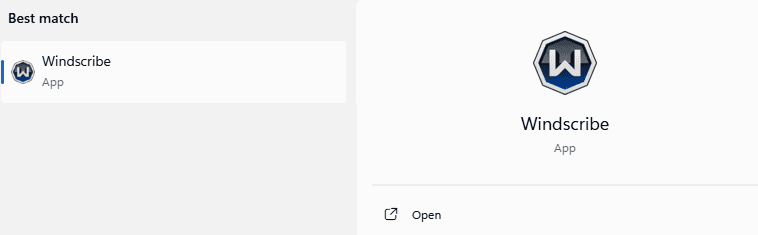
Figure 1: Windscribe selected in Windows Search with the Open action available.
Log in with your Windscribe username and password. If you don’t have an account yet, create a free account from the app.
After logging in, you’ll see the main Windscribe window with a large connection button. Click it to connect to the best available location automatically. Windscribe will choose a nearby location that should work well for your connection.
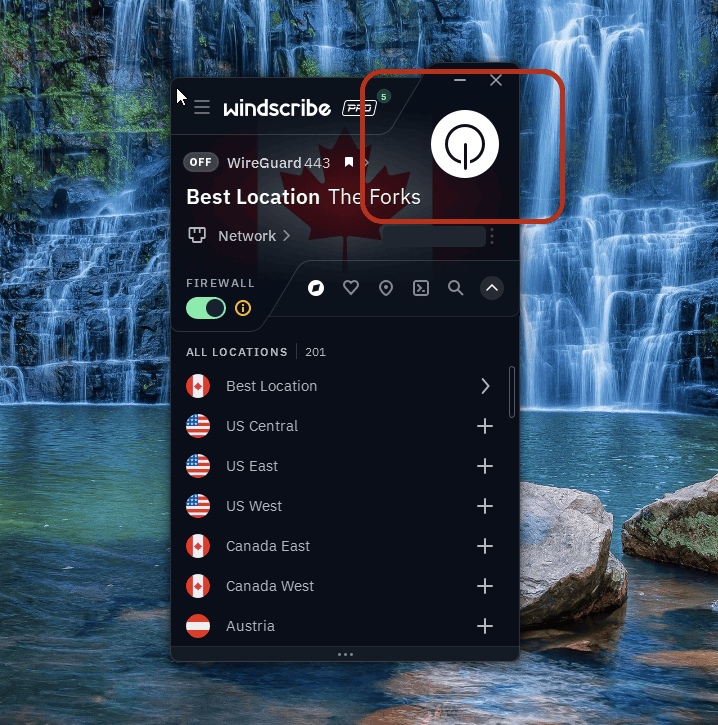
Figure 2: Windscribe disconnected with the power button highlighted and the location list open. The public IP is redacted.
To choose a location yourself, open the location list and pick a country or city. This is useful if you need a specific region, want to test speeds, or simply feel emotionally attached to Prague.
To disconnect, click the connection button again.
Location note: Free accounts can connect only to free locations. Windscribe offers free locations in 10 countries. Paid locations are marked with a star and require either Pro or a Build-A-Plan subscription that includes that location.
Recommended Windows Settings
Windows PCs tend to run a lot of apps, services, launchers, sync tools, updaters, helpers, assistants, and other tiny digital roommates. These settings help keep that traffic under control.
Firewall
Windscribe’s Firewall blocks internet traffic that tries to leave your PC outside the VPN tunnel.
This is stricter than a basic kill switch. Instead of waiting for the VPN to drop and then reacting, the Firewall blocks traffic that would bypass the tunnel in the first place. If the VPN connection fails, your apps don’t quietly fall back to your regular internet connection.
That matters on Windows because plenty of apps connect in the background. Browsers, cloud storage, messaging apps, game launchers, torrent clients, and update services can all send traffic while you’re not actively using them.
For most Windows users, the Firewall is one of the most important settings to keep enabled.
Auto-Connect
Auto-Connect is useful if your Windows PC moves between networks.
A desktop plugged into your home router probably doesn’t need much automation. A laptop that bounces between home Wi-Fi, office Wi-Fi, hotel Wi-Fi, airport Wi-Fi, and the suspicious café network called “Free_Internet_5G” absolutely does.
Use Auto-Connect to tell Windscribe when to connect automatically. You can mark trusted networks and let Windscribe step in when your PC joins one you don’t trust.
This helps remove the weakest part of any privacy setup: remembering to turn it on before you need it.
Protocol
The protocol is the connection method Windscribe uses to create the VPN tunnel.
You can usually leave this on the default setting. If the VPN connects, speeds are good, and websites behave normally, congratulations. You do not need to turn protocol selection into a hobby.
If a network blocks VPN traffic or your connection feels unstable, changing protocols can help.
- WireGuard is usually the best default for Windows. It’s fast, efficient, and well-suited for everyday browsing, streaming, downloads, and general PC use.
- IKEv2 connects quickly and can be reliable, though some restrictive networks block it.
- OpenVPN UDP is a long-running VPN standard that often gives a good balance of speed and reliability.
- OpenVPN TCP is usually slower than UDP, but may behave better on difficult networks.
- Stealth disguises VPN traffic as regular secure web traffic using OpenVPN over TLS.
- WStunnel wraps traffic in WebSocket traffic, which can help on networks that interfere with standard VPN connections.
If you’re on a school, office, hotel, or restricted network that blocks normal VPN traffic, try Stealth or WStunnel. They’re built for hostile networks, not for making your laptop feel mysterious.
Useful Windows Extras
These features are not required for basic VPN use, but they can make Windscribe much more useful on a PC.
Split Tunneling
Split Tunneling lets you decide which apps use Windscribe and which apps use your regular internet connection.
This is useful when different apps need different treatment. You might route your browser, torrent client, or media app through Windscribe, while letting a banking app, game launcher, work tool, or local network app connect normally.
On Windows, this is especially handy because not every app behaves the same way. Traditional desktop apps are usually straightforward, but some Microsoft Store apps and background services may need testing after you set your rules.
Set it up, check that the right apps are using the right connection, then enjoy not making your entire PC follow one rule forever.
Secure Hotspot
Secure Hotspot lets your Windows PC share its Windscribe connection with other devices over Wi-Fi.
Your PC connects to Windscribe first. Then it creates a Wi-Fi hotspot. Any device that joins that hotspot uses the VPN connection from your Windows machine.
This is useful for devices that can’t run the Windscribe app directly, like some smart TVs, consoles, streaming sticks, or old tablets that should probably be in a museum but still turn on.
There is one Windows-flavored caveat: Secure Hotspot depends on your Wi-Fi adapter and driver support. If your hardware doesn’t support it, the feature may not work. The computer will not apologize.
R.O.B.E.R.T.
R.O.B.E.R.T. is Windscribe’s customizable DNS-level blocker.
While you’re connected to Windscribe, R.O.B.E.R.T. can block many ads, trackers, malware, and other unwanted domains before they load on your PC. This can reduce junk, cut down on tracking, and stop some sketchy domains before your browser gets involved.
You can manage R.O.B.E.R.T. from the desktop app or on the Blocking Categories and Custom Rules pages under Security in My Account.
It’s not antivirus software, and it won’t stop you from running a suspicious file named totally_real_invoice_final_FINAL.exe, but it does give your connection a useful layer of domain-level filtering.
Best Setup for a Windows Laptop
For a laptop, the best low-maintenance setup is:
Firewall on. Auto-Connect configured. Protocol left on default unless something breaks.
That gives you a good balance of protection and convenience. Windscribe can connect when you join networks you don’t trust, and the Firewall helps prevent traffic from escaping outside the VPN tunnel if the connection drops.
This is especially useful for public Wi-Fi, travel, coworking spaces, hotels, airports, and anywhere else people name networks like they’re setting traps in a cartoon.
To check your browser's connection, compare your public IP before and after connecting using our What Is My IP tool. This does not test the traffic of every app on your device.

